The practical reporting guide
How to write a contractor job report with photos
A useful job report answers three questions: What did you find, what did you do, and what does the finished work look like? For a small repair, a few clear photos and a short note are often enough.
By SiteGrid. Updated .
A short job report checklist
- Identify the job. Use a project name your customer recognises. Include the date and work address when useful.
- Show the starting point. Photograph the affected area before work begins. Include one wider view for context and a close-up of the issue.
- Describe the work. State what you repaired, installed or replaced. Use specific observations, not vague phrases such as "all done".
- Show the result. Take an after photo from a similar angle. Add a close-up if the finish or a small detail matters.
- Explain anything outstanding. If more work is needed, say so in the note. Do not let an after photo imply the whole job is finished when it is not.
- Check before sharing. Review captions, dates, the selected photos and any private information visible in the images.
Example: a kitchen backsplash repair
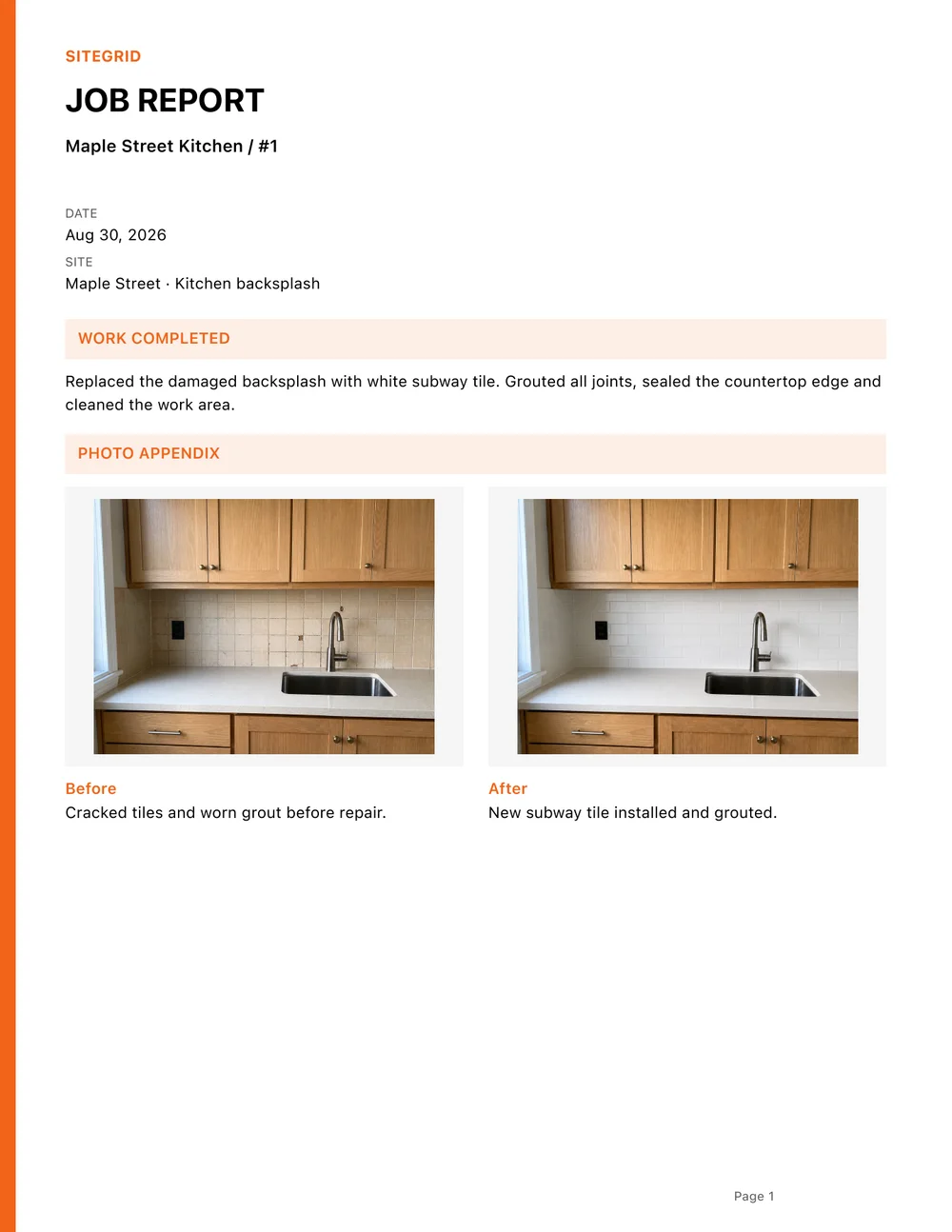
This fictional example uses the actual PDF produced by SiteGrid. The sample photos were AI-generated to illustrate the workflow; they are not evidence of a real customer job.
Project: Maple Street Kitchen
Work completed: Replaced the damaged backsplash with white subway tile. Grouted all joints, sealed the countertop edge and cleaned the work area.
Before caption: Cracked tiles and worn grout before repair.
After caption: New subway tile installed and grouted.
The wide before and after photos explain the change. The detail photos show the damaged joint and the finished countertop edge. Each caption gives the image a purpose instead of repeating "site photo".
Take photos that explain the work
Keep a similar viewpoint for the before and after images. Use a wider photo to identify the area and a close-up to show the detail. Check that lighting and focus make the important part visible. Avoid including customers, house numbers or personal belongings unless they are needed and appropriate to share.
Labels such as Before, Work in Progress and After help the reader follow the sequence. A short caption should explain the finding or the work, not just name the room.
When to use a detailed daily report
A quick job report suits a completed repair or a straightforward customer update. A daily construction report is more useful when the record needs to cover who worked, work hours, materials, equipment and site conditions across an ongoing job.
In SiteGrid, start with the quick report for photos and a note. Select the detailed report from the report type menu when you need the additional fields. Keep the level of detail proportionate to the job and your customer's requirements.
Photo report or job report?
A photo report is useful when the images and captions tell most of the story. SiteGrid offers layouts with 2, 4 or 6 photos per page for this format. A job report adds the work record and includes selected images in a compact photo appendix. These are separate export formats, so the photo-layout selector does not change the job-report appendix.
Send the report with the context
Tell your customer which job the report covers and whether it documents progress or completion. If you also send an invoice, use your normal invoicing tool and attach or share the report alongside it. SiteGrid does not create invoices, collect money or guarantee payment.
A photo job report is a communication record. It is not automatically a certified inspection, compliance report or substitute for documentation required by your contract.
Make your next report on the job
SiteGrid runs on iPhone and iPad. Start a project without an account, take your photos, dictate or type a note and prepare the PDF. The tutorial includes a free example export; further access depends on the free limits or Pro plan shown in the app.